
Web applications with a public address
Open a public web application through BusinessProxy.
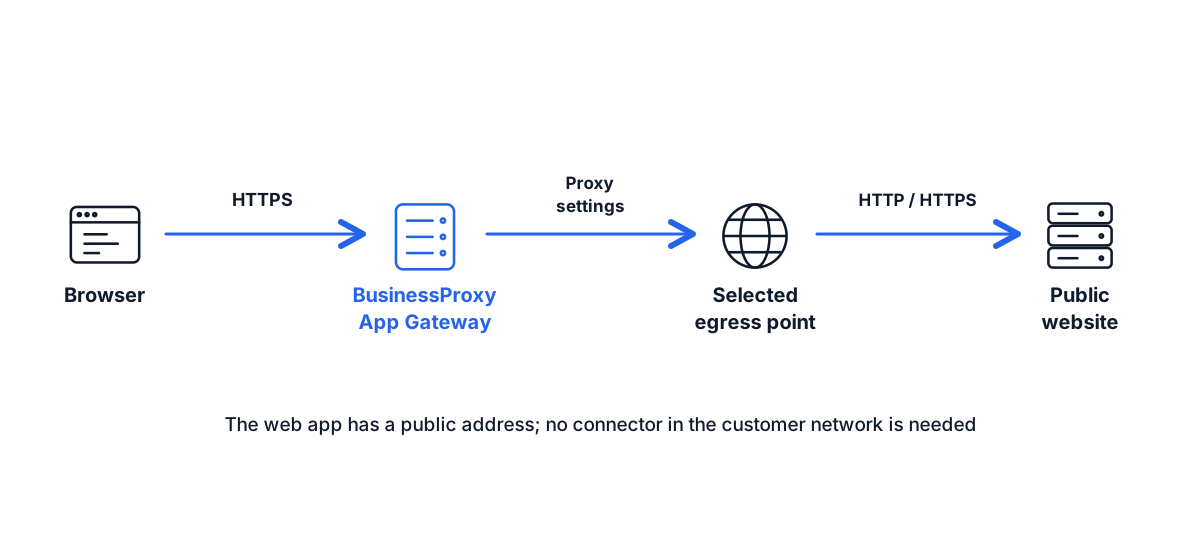
Add a partner portal, operations console or SaaS panel with a public address to BusinessProxy. Assign users and, where the connection supports it, choose an egress server.
What to configure
Enter the HTTP or HTTPS address of a public web application you are authorised to use. Private network addresses and localhost are not supported for this connection.
List the web application’s main hostname and the related domains needed for sign-in and use.
Choose an available server in web application settings. Check what happens if it becomes unavailable.
Give users permission to open the web application in the appropriate workspace.
Test sign-in and direct access to the service
Test sign-in, navigation, files and long-lived connections. Follow the external service’s terms; its behaviour may also depend on cookies and account settings.
Revoking access in BusinessProxy closes access through BusinessProxy. If a person can open the SaaS directly, revoke their permissions and sessions in that service too. To require access through BusinessProxy, restrict direct access in the service’s settings where supported.
Web application management and pricing
Charges start when you turn on the web application and stop when you pause it. The administrator grants user access separately. There is currently no separate traffic charge. See the pricing page for rates and an example estimate.