
For specialists with several clients
Open different clients’ web applications with one personal account.
Work with your own web applications and accept client invitations. Each workspace shows the resources and permissions that client has assigned to you.
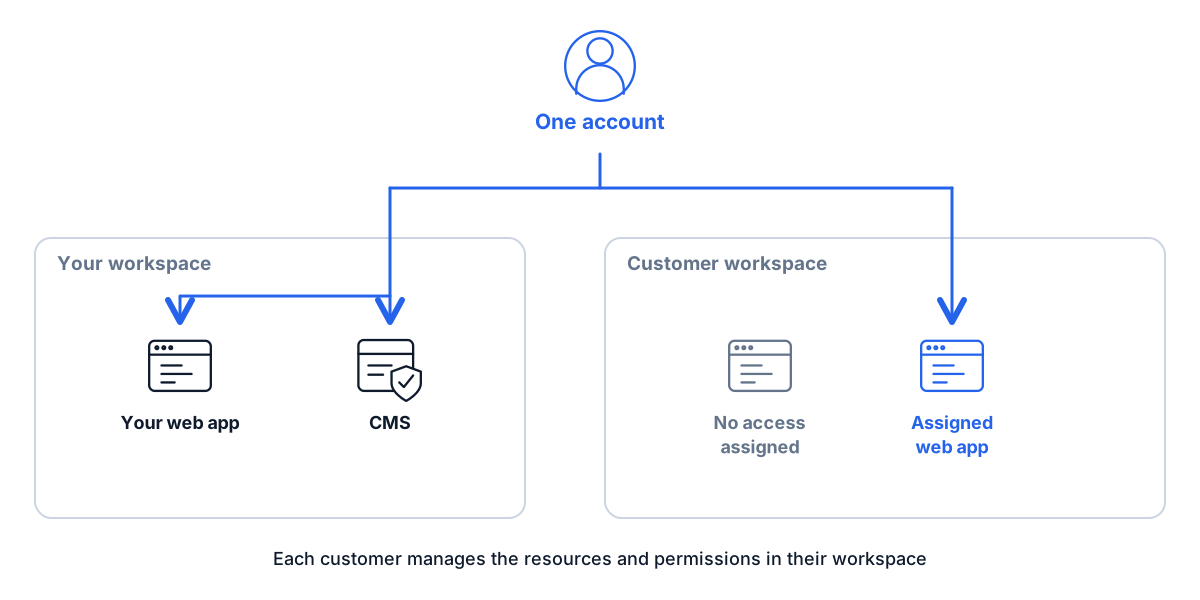
Choose a client and open the web applications they assign
| Where you work | What you can do | Who pays |
|---|---|---|
| Your workspace | As owner, you configure your resources and invitations | The payer selected for your services |
| A client web application | You open the resource assigned by the client | The client service’s payment account |
| Client administration | Only explicitly granted administrative or delegated operations | The payer selected for the service; an administrator role does not change billing |
The client invites the identity you already use
There is no need for a shared agency sign-in to BusinessProxy.
Share your account address
The client sends an invitation to the email address you agree on.
Accept the invitation
After sign-in, the accessible client workspace appears alongside your own workspaces.
Choose the client and web application
Check the selected client’s name before launching. Ask the client administrator if a required resource is missing.
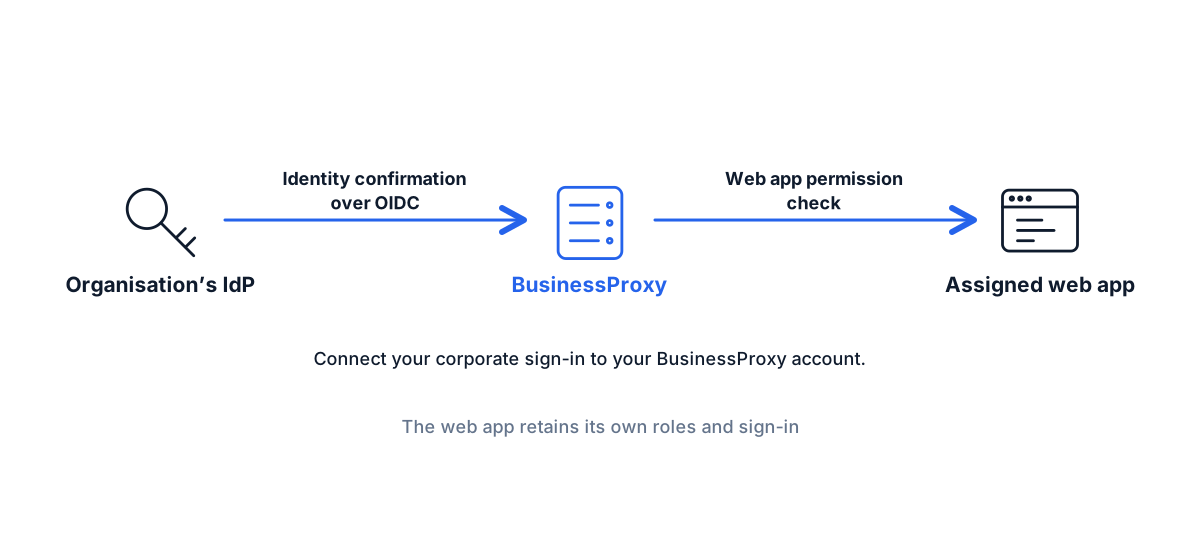
Use browser profiles for different accounts on the same CMS
The workspace switcher helps you select a client and their resources. Site accounts and cookies remain in the browser.
Use separate browser profiles when working with different accounts on the same CMS or SaaS. Switching BusinessProxy workspaces does not clear cookies or isolate sessions on those sites.
Each client closes its own engagement
Revoking a client invitation does not transfer your own workspace to the client or change its owner.
Its administrator removes permissions and ends BusinessProxy sessions for the client’s web applications.
Agree on removing CMS accounts, API keys and any other access granted outside BusinessProxy.
A client invitation does not transfer their costs to you
Your own PAYG services accrue charges from enablement until you pause them; closing a tab does not stop billing. Accepting a client invitation does not change the payer for their service.
Before the first invitation
Can a client see my other projects?
Workspaces have separate access boundaries. Joining a client workspace does not grant that client permissions over your own resources.
Do I need to register again with another email?
Use your existing personal identity and agree on the invitation address with the client. Additional accounts are not needed just to switch between clients.
Who pays for access to the client web application?
The payer selected for the service pays the charges. Accepting an invitation does not make you responsible for the client’s costs. You pay separately for your own workspace services.
Keep your projects and client invitations in one account
Start with your own identity. Clients can then assign the web applications you need.