
For clinics
Let branch staff and support specialists open your clinical web systems.
Assign the clinical web system, CRM or admin console each person needs. They open it in a browser; your administrator can revoke access and end BusinessProxy sessions when the work is done.
A branch team, a clinical system and an external specialist
Front-desk staff need the clinical interface every day. An integrator needs the admin console during maintenance.
Front desk
Staff need the working interface of the clinical system. They open it from the portal and use their own accounts within that system.
External support
An integrator needs the administration console during maintenance. Other web applications are not assigned to them.
The clinic’s administrator can review permissions and active sessions. When maintenance ends, they revoke the specialist’s permission and end their BusinessProxy sessions.
Connect the clinical system without an inbound Internet port
The clinical web application continues to run inside your network.
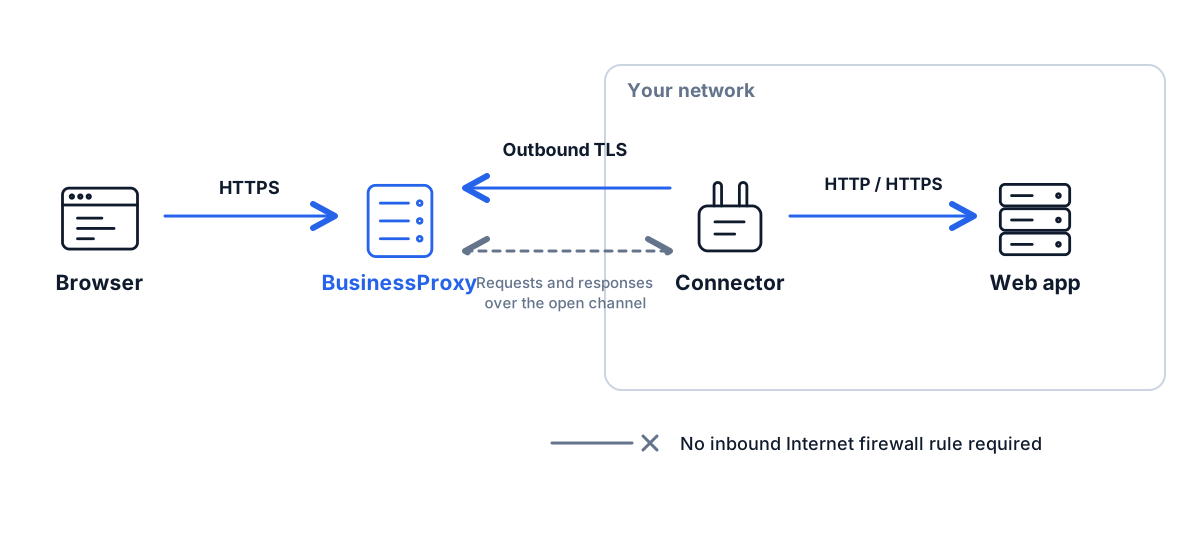
- Run a connector in the clinic’s network. It connects to BusinessProxy over TLS.
- That connection does not require an inbound Internet port to the clinical system.
- Allow outbound TLS connections and access from the connector to the web application’s internal address.
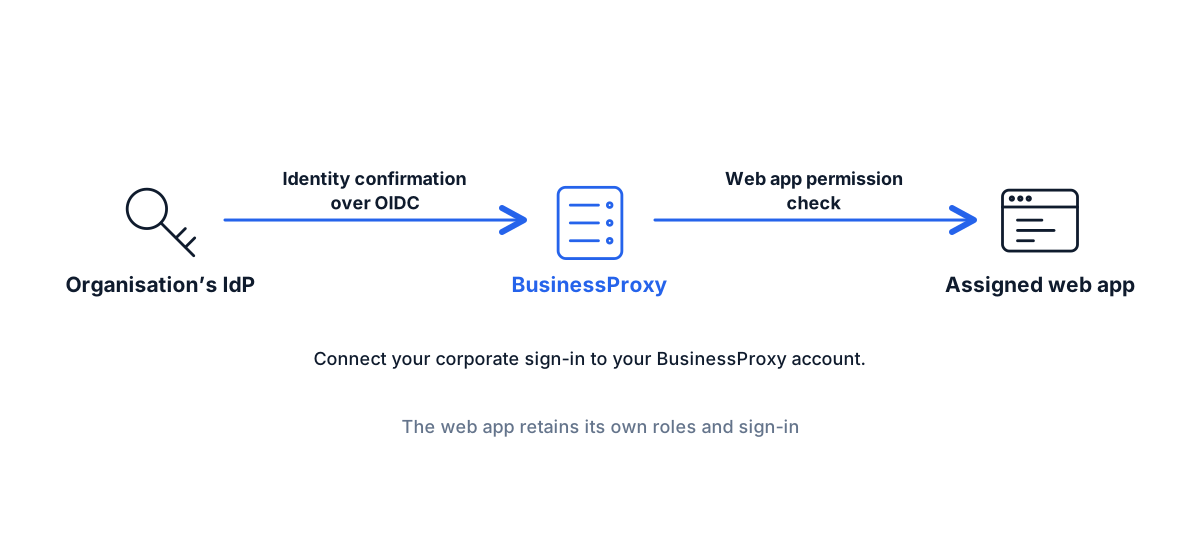
- BusinessProxy controls access to the published web application. Clinical roles and permissions remain in the clinical system.
Match access to the work being done
Assign the required web applications to each employee or group. Set session duration and additional sign-in checks.
Invite specialists with their own identities. Give them the required web applications and decide separately whether they need administrative permissions.
Revoke the permission and end BusinessProxy sessions. If the specialist also holds a native account in the clinical system, disable it there.
Validate one system before extending the rollout
A focused pilot lets you test web application compatibility and agree on access rules before connecting more branches.
Choose a web application
Review its internal address, domains, WebSocket use, downloads and redirects. A desktop clinical client needs a separate access approach.
Test two roles
Check an employee and an external specialist: assigned web applications, their native system accounts and blocked access to unassigned resources.
Test access removal
Revoke access in BusinessProxy, attempt a new launch and verify that direct access to the origin follows your network policy.
Pay for each clinical web system or CRM you connect
One web application is one PAYG unit. Charges run from enabling the service until you pause it, including after staff close their tabs.
Charges continue while the service is enabled. You can pause it in your account.
Estimate your usageClinical-data handling, log retention and employee access requirements should be reviewed for your infrastructure. BusinessProxy adds a controlled entry point to the web systems you select.
Before you connect
Will it work with any clinical system?
This workflow is for web interfaces. Test the specific web application, its sign-in, redirects and file handling. Desktop clients, RDP and other network protocols require a different access solution.
Does every employee need a browser extension?
No extension is needed for portal access to a published internal web application. Browser Proxy is a separate extension-based mode for routing selected browser domains.
Can staff keep their existing clinical accounts?
Yes. BusinessProxy checks who may open the web interface. Inside the clinical system, staff use their existing accounts and clinical or administrative roles.
Should we also disable the account in the clinical system?
Yes. Revoking BusinessProxy access closes entry through BusinessProxy. Disable the employee’s or contractor’s own clinical-system account in that system as well.
Start with the clinical system you already use
Tell us where it runs, who needs access and what your external specialists need to do.