
Isolated browser
Work applications in an isolated browser.
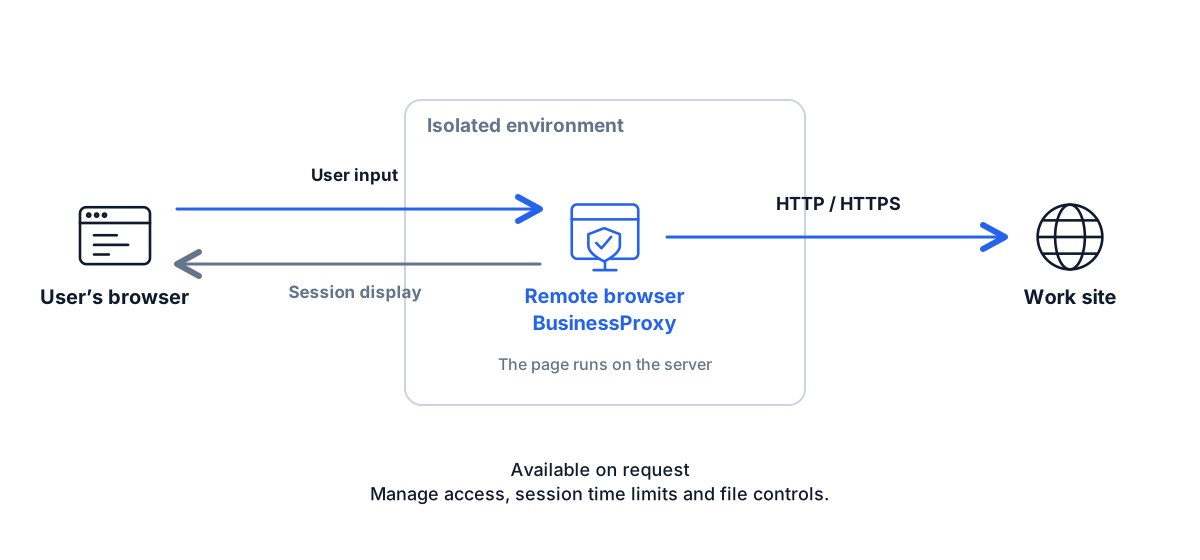
Give employees and contractors access to work websites from personal and company devices. The browser runs in a secure server environment, controlled from an ordinary browser tab. No software or extensions to install.
Available on request
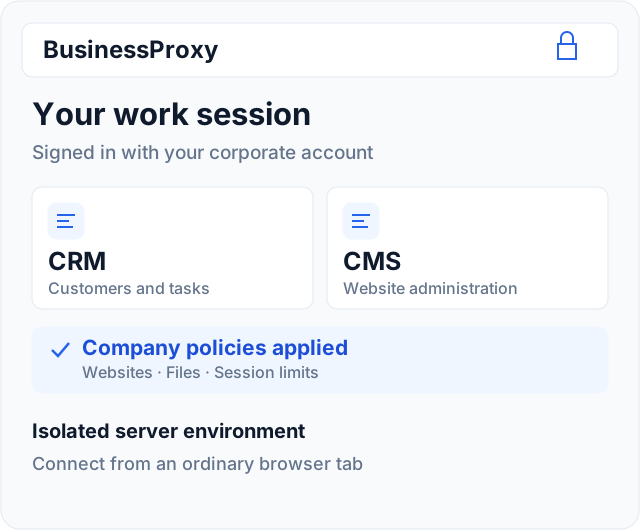
A workspace you control
A contractor needs your CMS. An employee needs the internal CRM on a personal laptop. Give them the applications they need and manage how they work from one place.
Choose the people, applications and access policies. Websites run in the remote browser, keeping work cookies and the browser profile in the server environment. Session data is cleared when the temporary workspace ends.
- Sign in with a corporate account
- Assigned websites and private applications
- Copy, print and file transfer policies
- Session time limits and termination
A browser link to the applications they need
Users open BusinessProxy, sign in and launch an assigned application. The browser display and user input travel over an encrypted connection.
Set the rules before work begins
Assign employee and contractor access through corporate SSO, AD FS and BusinessProxy groups.
Choose permitted domains and private applications. Control which destinations the remote browser can reach.
Decide whether users can copy text, print, upload or download files. Match policies to their role and task.
Set time limits, review active connections and end access when the work is complete.
Private applications, wherever your team works
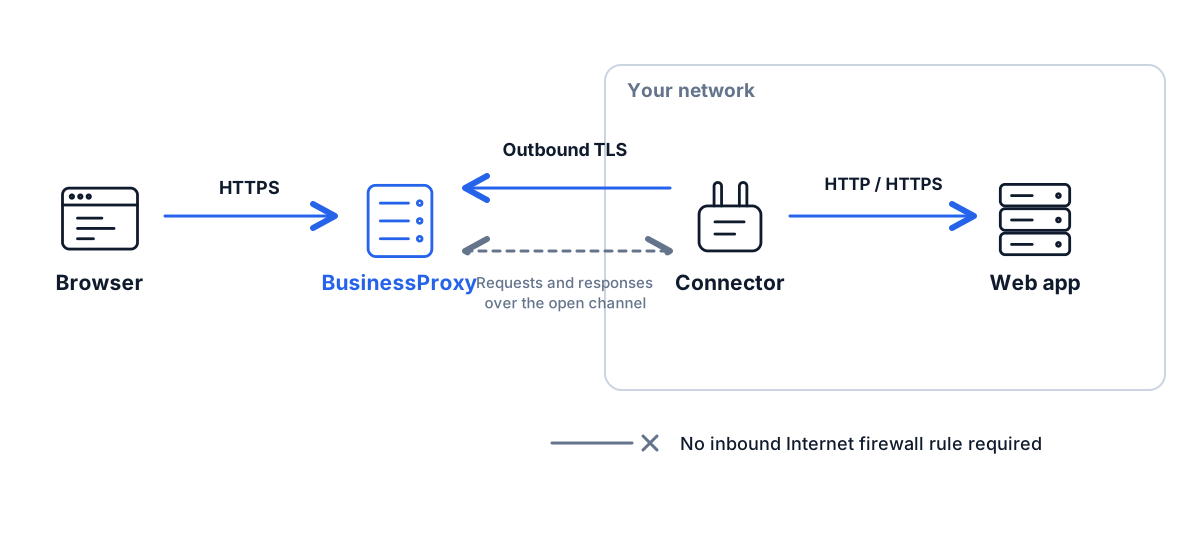
Connect your CRM, ERP, Bitrix or internal portal through the BusinessProxy connector. Users work with them in the isolated browser.
The connector establishes an outbound connection from your network. Your application needs no inbound Internet port. Users reach their assigned resources without configuring a VPN on their device.
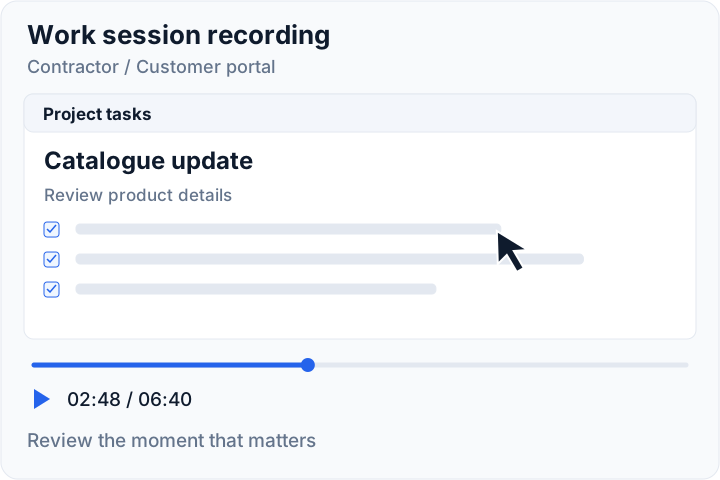
Video recording for work sessions
Add recording for contractor and employee work in the isolated browser. Return to a specific moment, review completed actions and investigate issues with a session replay.
- Review work performed in customer systems
- Investigate errors and incidents in context
- Support training and quality reviews
Session recording is available as a separate option. Choose which sessions to record, who can watch them and how long videos are retained.
For teams that need control over access
Bring people into your workflow regardless of who owns their computer.
Give an external specialist access to selected applications for a project. End the session and revoke access when the work is complete.
Give employees a prepared workspace on their home computer. The company manages its settings and work profile.
Keep each customer’s work in a separate environment. Organise accounts, applications and access across client projects.
Give operators access to your CRM and internal portals. Add recording for quality reviews and investigating complex cases.
A setup built around your workflow
Tell us which applications your team uses. We will prepare the environment, configure access and help your users get started.
Choose your applications
List the work websites, internal systems and people who need access.
Define your policies
Agree corporate sign-in, groups, file controls, session limits and recording.
Invite your team
Users receive a link and start work in their familiar browser.
Questions about getting started
Do users need an extension or VPN?
No. Users open a link in their usual browser, sign in and work in the remote environment. There is no software or browser extension to install on their device.
Can users reach applications inside our network?
Yes. The BusinessProxy connector links your network to the isolated environment. Assign each person the private applications they need.
Can we use corporate accounts?
Yes. Connect corporate SSO, including AD FS, and assign access through BusinessProxy users and groups.
Can we record a contractor’s work?
Yes. Video session recording is available separately. During setup we agree which sessions to record, who may view recordings and how long to retain them.
How do we get access?
Send a request with your applications, user count and access requirements. The BusinessProxy team will prepare your configuration and service terms.
Give your team a place to work
Contractors, personal devices and private systems: we will configure the workspace and policies around your team.